

Latest

Cyber attacks are no longer a problem only faced by large corporations. Small and medium sized businesses are increasingly targeted because they are often...
Read more >

MSP stands for Managed Service Provider. In simple terms, an MSP is a company that takes ongoing responsibility for managing and maintaining your IT...
Read more >

Macs have always had a strong reputation for security, and for many businesses, that has helped drive the use of Apple hardware across teams,...
Read more >
In late 2025 Apple released macOS Tahoe 26, the newest major version of the Mac operating system. This update brings one of the most...
Read more >
The recent major disruption to Amazon Web Services (AWS) should have been a full-blown wake-up call for all businesses. From banking apps and government...
Read more >

AI tools like Sora can create videos, text, and images in seconds — but using them without understanding copyright law can land you in...
Read more >

The Jaguar Land Rover cyberattack shows how a single breach can disrupt entire operations. The key takeaways are to strengthen visibility across all systems,...
Read more >
Businesses are always looking for smarter, more efficient ways to work and over recent years Google Workspace has become one of the most widely...
Read more >
More companies than not, in the UK and globally, use Microsoft 365 in one way or another. Emails, cloud storage, Teams meetings, shared documents,...
Read more >
Cyber security in 2025 is more complex than ever. Threats are constantly evolving, hackers' tools are becoming more sophisticated, and the risks to businesses...
Read more >

If you run a small business, you’ve probably heard the advice about putting good cyber security in place. But if your team is small,...
Read more >
We are at the point where cybersecurity isn’t just a nice-to-have. It’s a business essential, no matter what sector you are in. That’s why...
Read more >

How to Protect Hybrid Teams with MFA and SSO Remote and hybrid working is now the norm—but it exposes your business to new cybersecurity...
Read more >

TL;DR: What Certification Bodies Do in the Cyber Essentials Process Cyber Essentials is a government-backed cyber security certification that protects UK businesses from common...
Read more >

Cloud migration is no longer a tech upgrade. For SMEs, it's a strategic move that improves cost-efficiency, cyber resilience, and remote working. This guide...
Read more >
In 2025, UK cyber attacks have intensified dramatically and we have seen a wave of high-profile cyber attacks in the UK. From M&S and...
Read more >
Cyber Incident Response is essential for SMEs facing rising cyber threats. This article explains what a CIR plan is, why it matters, and how...
Read more >

Google Workspace is brimming with useful tools — We even have a handy guide here for using Google Gemini AI in your organisation. Here's...
Read more >

From remote collaboration to cloud computing, technology powers nearly every part of a modern business. But all that convenience comes at an environmental cost....
Read more >

Email is the backbone of modern business communication. So when a message goes missing—especially one that’s time-sensitive or critical—it can throw a serious spanner...
Read more >

If your business sends a lot of emails — for marketing, customer support, or internal communications — there’s a change coming from Microsoft that...
Read more >

If your business is still using Windows 10, it’s time to start planning for a change. From 14th October 2025, Microsoft will officially end...
Read more >

Google Workspace has long been a favourite for growing businesses – with tools like Gmail, Drive, Meet and Docs making collaboration a breeze. But...
Read more >
ISO 27001 certification is fast becoming a must-have for businesses that want to win bigger contracts, demonstrate commitment to data security, and keep regulators...
Read more >

Sustainability is no longer just a buzzword—it’s a business necessity. Whether you're a B Corp (like us!), a green tech startup, or simply a...
Read more >

Your digital identity isn’t just a username and password—it’s a record of your online activity, tracking where you log in, what data you access,...
Read more >
March is B Corp Month, a time to celebrate businesses that balance profit with purpose. Here at Dial A Geek, we’re proud to be...
Read more >
Cyber Security awareness is always a hot topic in the IT space but here at Dial A Geek, we believe the conversation needs to...
Read more >

As the tech world continues to evolve at a rapid pace, staying ahead of the curve is crucial for businesses in Bristol. Adopting a...
Read more >

In today's fast-paced tech world, staying ahead means staying adaptable. For businesses adopting Apple technologies, having the right support can make all the difference....
Read more >

Technology is a great tool for innovation, connection, and growth—but it also has a significant environmental impact. From energy-intensive data centres to the piles...
Read more >

Data is the lifeblood of modern businesses, fuelling automation, artificial intelligence, and smart decision-making. Yet, for many organisations, poor-quality data is a significant roadblock....
Read more >
In a world where data breaches make headlines and trust is more crucial than ever, ISO 27001 compliance is the gold standard for managing...
Read more >
In today’s business world, cyber security isn’t just a buzzword - it’s absolutely key to survival. If you’re looking to win contracts, protect sensitive...
Read more >

The arrival of a new year brings fresh opportunities to reflect, refocus, and set goals for improvement. For businesses, 2025 offers a chance to...
Read more >

As a growing business, you've likely ticked all the right boxes when it comes to internal compliance. You've secured the necessary certifications, implemented robust...
Read more >

If you're anything like us, you left your Christmas shopping for the very last minute. Looking for places to tick off your Christmas shopping...
Read more >

Meet Jordan Godwin - the newest addition to our team. Jordan’s Role as a Senior IT Technician involves helping our clients with a variety of IT...
Read more >

For startups and SMEs navigating compliance with frameworks like ISO 27001, Cyber Essentials, or Cyber Assurance, selecting the right compliance provider can feel overwhelming....
Read more >

For years, passwords have been a necessary—though often frustrating—part of online security. However, with rising threats and a clear need for simplicity, tech innovators...
Read more >
Running a small business can feel like a constant juggling act. There’s customer acquisition to manage, operations to streamline, and competitors to outpace. Compliance...
Read more >
For businesses of all sizes, Microsoft 365 offers a comprehensive suite of apps that can drive collaboration and efficiency. With its cloud-based infrastructure, Microsoft...
Read more >

While Google Workspace is packed with features that enhance productivity and include security measures like encryption and two-factor authentication, data protection through Google alone...
Read more >

Meet Ozair - the newest addition to our team. Ozair has joined us as a Finance Manager. His main role is to ensure the smooth financial...
Read more >

If you’re reading this, you likely already understand the importance of cyber security. Perhaps you’ve already set up key protections—firewalls, antivirus software, and multi-factor...
Read more >

Deep fakes, a blend of "deep learning" and "fake", are more than just buzzwords. As AI technology progresses, businesses face significant risks as cybercriminals...
Read more >

When choosing your organisation's technology support provider, it's essential to understand the difference between IT support and managed services. While both are vital for...
Read more >

Hackers are constantly on the lookout for easy targets, and endpoints—like laptops, desktops, and mobile devices—are prime candidates. In fact, research shows that 70%...
Read more >
In today's digital landscape, Microsoft 365 is a powerhouse, offering businesses a robust suite of tools to enhance productivity and collaboration. However, while Microsoft...
Read more >

Choosing between Google Workspace and Microsoft 365 can be a tough decision for any organisation. Both platforms are powerful, reliable, and widely used, offering...
Read more >
In today’s digital world, the importance of keeping your company’s data secure cannot be overstated. With cyber threats on the rise and remote work...
Read more >

This month we’re celebrating our 18th birthday. That’s right – Dial A Geek is of age! We wanted to create something fun to spread...
Read more >

In today’s fast-paced digital landscape, businesses of all sizes face a growing number of cyber threats. Whether you're a tech startup in the heart...
Read more >

Having a robust disaster recovery plan is essential, but it's only the first step. A comprehensive Business Continuity and Disaster Recovery (BCDR) plan must...
Read more >

According to recent research, the average person spends 4 hours and 37 minutes on their phone every day. We are living through the pinnacle...
Read more >

When you hear "CIA," you might think of spies, but in cybersecurity, CIA stands for Confidentiality, Integrity, and Availability. These three principles form the...
Read more >

On 2nd April 2026, Microsoft SharePoint Online workflows will be retired. That sounds a little way off. But if you use this handy automation...
Read more >
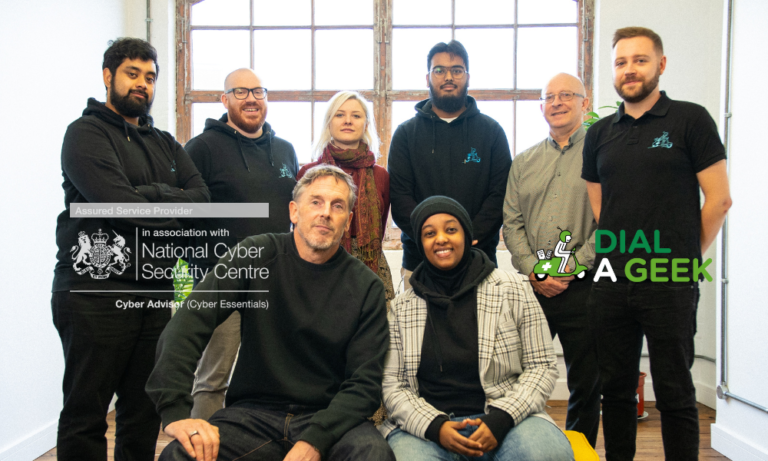
Dial A Geek has just met the standards required to become an Assured Cyber Security Consultancy – as approved by the NCSC, the National...
Read more >

Entra ID Protection used to be called Azure AD Identity Protection. It's one of Microsoft's most effective organisation-level cybersecurity solutions. But what does Entra...
Read more >
Migration to Microsoft 365 is a smart move for your business if you want to protect yourself and be ready to grow in future....
Read more >

Working out how to set up Microsoft 365 Advanced Threat Protection is one of the most effective ways to protect your business from email-based...
Read more >

Meet James - the newest addition to our team. James has joined us as a Senior IT Technician bringing over 16 years of experience across many areas...
Read more >

Your digital identity includes all of the activities and actions you take online every day. It's not just your login credentials (though, of course,...
Read more >

BYOD has its advantages and disadvantages. An abbreviation of “Bring Your Own Device”, this trendy, relatively new workplace innovation has made a big splash...
Read more >
If you're looking for a higher cybersecurity standard for your business – something to help you reassure investors and attract new clients – IASME...
Read more >

ISO 27001 is a key Information Security standard. For businesses that regularly hold onto sensitive data about their clients and want to demonstrate the...
Read more >

Your digital identity sounds a bit pretentious. But it encapsulates everything about what you say and do online, your login details, and more. This...
Read more >

Data protection has never been more important for businesses of every size. This is because of the massive rise in costly (£160 000 on...
Read more >
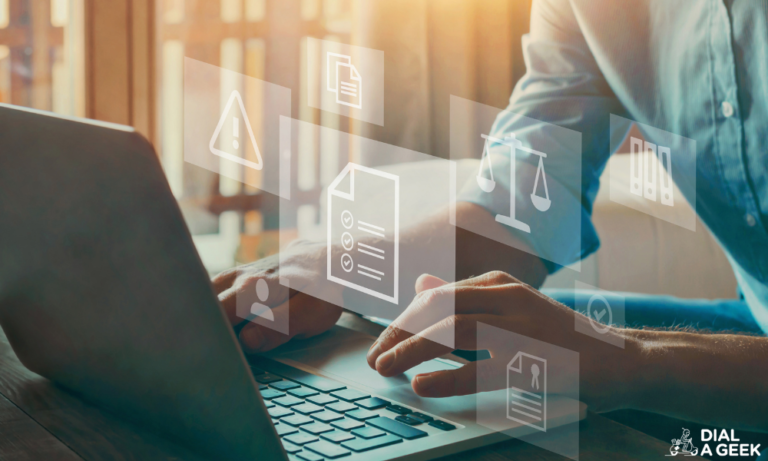
If you're an SME owner, it's often difficult to get everything you need to get done finished every day. For many of us, an...
Read more >

If your cybersecurity and user experience aren't in balance in your installation of Microsoft 365, you're setting yourself up for trouble. This is for...
Read more >

“Why is my Outlook running so slowly?” It's a question that regularly echoes around offices throughout the land. If figuring out how you can...
Read more >

Making the decision to professionalise your business's tech can feel like a big step. But outsourced IT services exist for a reason. In fact,...
Read more >

Cybersecurity compliance is a worthy and highly necessary goal for any organisation. But many companies risk their reputation and their security by making key...
Read more >

More and more cybercriminals are targeting Apple Mac users these days. So, how good is Mac security? How do you protect your data when...
Read more >

You know the score. You have one password for your email. Another for that account. Another for this. Before you know it, you need...
Read more >

Business Email Compromise attacks are on the rise. This kind of sophisticated cyber attack uses legitimate-seeming emails to convince you or a member of...
Read more >
One of the biggest objections to good cybersecurity practices from business owners is the imagined hit to productivity. Luckily, the latest security measures don't...
Read more >

One password for this app. Another for that device. An IT team constantly fielding login reset requests. If that's your business's daily reality, Single...
Read more >

You know the drill. Your business is launching new services. How will you market them? At Dial A Geek, we thought we'd get ChatGPT...
Read more >

Over 9 out of 10 cyber attacks start with an “innocent” email. That's why it's vital that you have advanced threat protection against phishing...
Read more >

Google Meet vs Teams. It's become a perennial question for decision-makers. Out of the two big names in workplace collaboration, what's better for business...
Read more >
The Zero Trust security model means your workplace computer network verifies every user's permission to be using it at all times. In today's cybersecurity...
Read more >

Cybersecurity and compliance are terms that are often used interchangeably. You can see why. Both are all about helping you manage your organisation's digital...
Read more >

Do you need to be absolutely sure there are zero holes in your cybersecurity protections that an attacker could exploit? If so, learning what...
Read more >

New Year, new you? The New Year is the time many organisations choose to reset and set new goals. And when it comes to...
Read more >

Adversary in The Middle phishing attacks have been around for a while. But now they're on the rise in a big way. Responsible business...
Read more >
If you want to protect your business's information, it's an ideal standard to meet. But what is ISO 27001 really? Why would you want...
Read more >

It's beginning to feel a lot like... time to turn everything off before you high-tail it for the snowy hills. But have you ticked...
Read more >

Stuck for where to do your Christmas shopping in Bristol this year while being ethical and sustainable? We're right there with you. But luckily...
Read more >
Cyber Essentials is one of the easiest and most effective ways to know that you have done your due diligence on Cybersecurity for your...
Read more >

If you want to improve your productivity as well as your environmental impact, you need to know how to implement a Green IT strategy....
Read more >

Microsoft has long led the way in developing collaboration tools for the remote workplace. But at least two of their offerings sound very similar....
Read more >

Over 95% of the top companies in the world said in a recent survey that they believed ethical business was a benefit. Not a...
Read more >

Shadow IT sounds scary. And from the point of view of your business's cybersecurity and bottom line, it is. Yet shadow IT – or...
Read more >

Cyber crime is massively on the up. So, should you invest in cyber insurance? The short answer is almost certainly yes. But don't go...
Read more >

If you want to hire the talent of tomorrow, it's worth understanding how tightly entwined ethical business and recruitment have become over the past...
Read more >

Cybersecurity isn't usually designed to make your team's lives difficult. Accessibility issues are more likely to be accidental oversights. But they can still be...
Read more >

Watching their IT team slowly drown under a weight of tasks and an ad hoc system that's stretched and inefficient leaves many organisations wondering:...
Read more >

Commercial companies are responsible for a whopping 20% of UK greenhouse gas emissions. This makes it vital to figure out how businesses can reduce...
Read more >
Cybersecurity is complicated. Not only is protecting your company from threats difficult, but there are also numerous compliance standards you're supposed to meet. But...
Read more >

On the surface, these increasingly common terms sound interchangeable. They're not though. So, what's the difference between CSR and ESG? Corporate Social Responsibility and...
Read more >

Being a “green” business isn't easy. But there are ways tech can help you minimise your environmental impact. This is something that can have...
Read more >
Microsoft is jumping aboard the AI train. Microsoft 365 CoPilot is a new AI tool that's designed to boost you and your team's productivity...
Read more >
We are very excited to announce that we have just joined the exclusive circle of B Corporations! Our journey wasn't easy but it was...
Read more >

By now, everyone is well aware of the climate emergency. Every person and organisation needs to take action. But where do we start? The...
Read more >

Green IT and Green IS sound a lot alike. Information Technology? Information Systems? When it comes right down to Green IT vs Green IS,...
Read more >
With the current shortage of talent (over 2.7 million professionals needed worldwide), it's no surprise businesses in every industry are considering reasons to outsource...
Read more >

Climate change is happening. Every person, nation, and business needs to start to measure its environmental impact if we're all to put sustainability front...
Read more >

Most modern technology requires increasingly rare resources to produce. It all takes energy to run, much of which is still supplied by fossil fuels....
Read more >

Cloud computing is here to stay – and it's only going to get bigger and more centralised. This gives the three largest providers –...
Read more >

What do you do when disaster strikes? Your Business Continuity Strategy tells you exactly what the plan is. So how far have you gotten...
Read more >

If you don't know how big your business's carbon footprint is, you're not alone. But an equally interesting question is, where does the idea...
Read more >

Everyone knows that a happy team is a big benefit to an organisation. Happy teams are more productive and more loyal. They effectively become...
Read more >

They cost energy to run. They require rare resources to make. Being sustainable with your tech – otherwise known as “green IT” – is...
Read more >
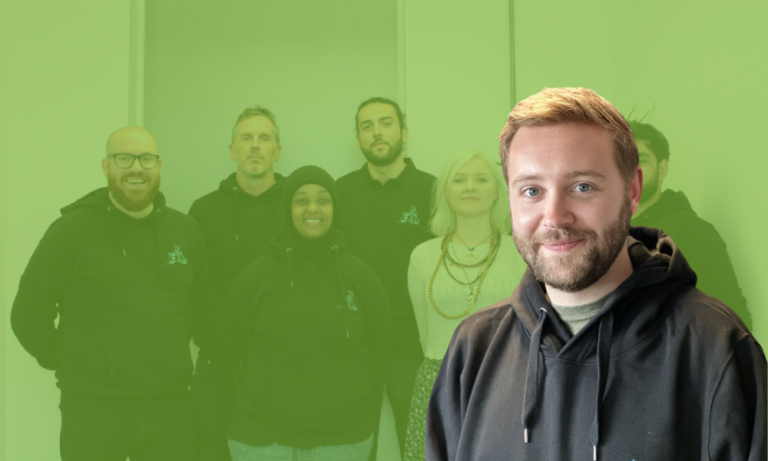
Meet Luke – the newest addition to our team. Luke has just started his role as our 3rd Line IT Technician, which means that...
Read more >

The dangers of “greenwashing” – what it is, how to spot it, and how to avoid it in your own business
Greenwashing is one of the most dangerous and pernicious modern phenomena. It's a direct effort to benefit from the growing sustainability movement. It often...
Read more >

The switch to more remote working – especially the attendant reduced carbon emissions from commuting and business travel – has been hailed as part...
Read more >

Huge numbers of companies are currently trying to become more sustainable. For many, part of this involves transitioning to the “circular economy”. But what...
Read more >

Happy employees work harder and stay with your organisation for longer. But a happy team can be hard to achieve – especially if you...
Read more >

The cost of living crisis dominated domestic headlines in 2022. But in 2023, it's the rising cost of doing business that's becoming the topic...
Read more >

Hybrid working is here to stay. But for all its many perks, could Working From Home and discrimination soon feature together in more headlines?...
Read more >

March is B Corp month. So it's only fitting we get to the bottom of this increasingly well-known kind of certification. So, what is...
Read more >
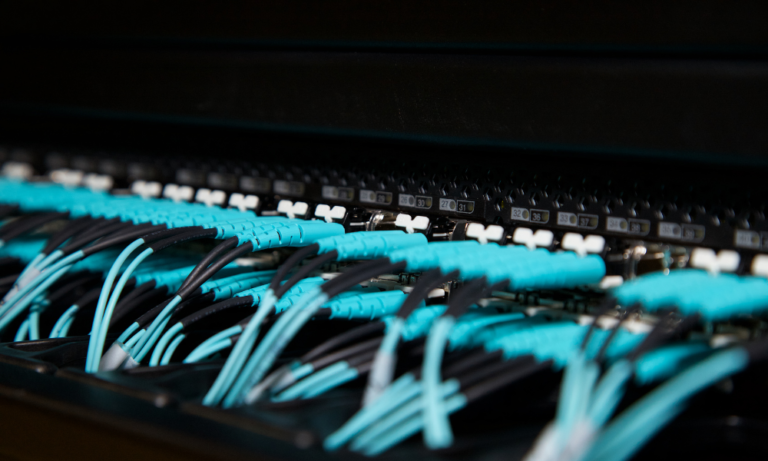
As the climate emergency continues, data centres seem to be getting more than a few fingers pointed at them. But what is a data...
Read more >

At Dial A Geek, we do carbon offsetting. But is carbon offsetting an automatic win when it comes to your business and climate change?...
Read more >

Meet Syed – the newest addition to our team. Syed had just started his role as a 1st Line Business Support Technician on an...
Read more >

Your business IT and what you choose to invest in can make or break your company. Before you put your hard-earned money on the...
Read more >

In 2023, ESG (Environmental, Social, and Governance) standards in the UK will require companies to meet regular Sustainability Disclosure Requirements (SDRs). This is because,...
Read more >

Private health insurance is becoming a bigger and bigger talent draw for companies in the UK. But why else is it worth offering private...
Read more >
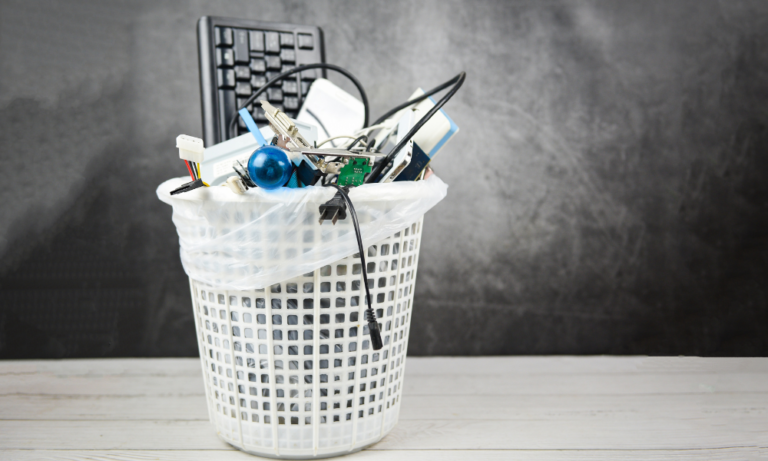
One of the biggest contributors to your technology's impact on the environment is E-waste. But what is it exactly and what can you do...
Read more >

Having a remote working option has been shown to deliver many benefits for most people. A better work-life balance is not the least of...
Read more >

The cost of living crisis will be something we're going to hear a lot more about this year. Many businesses are basing their New...
Read more >

Device management is one of the most vital aspects of cybersecurity for businesses of every size and in every industry. If you want to...
Read more >

Anticipating the trends of the workplace of the future is vital for every business that wants to protect itself and grow. This year, we've...
Read more >

Thanks to COVID-19, 86% of UK employers say they're going to be investing more in staff wellbeing in future. Even the big global players...
Read more >

Cybersecurity might not be the first Christmas thought that pops into your head before you hang up your professional hat for the holidays. Yet...
Read more >
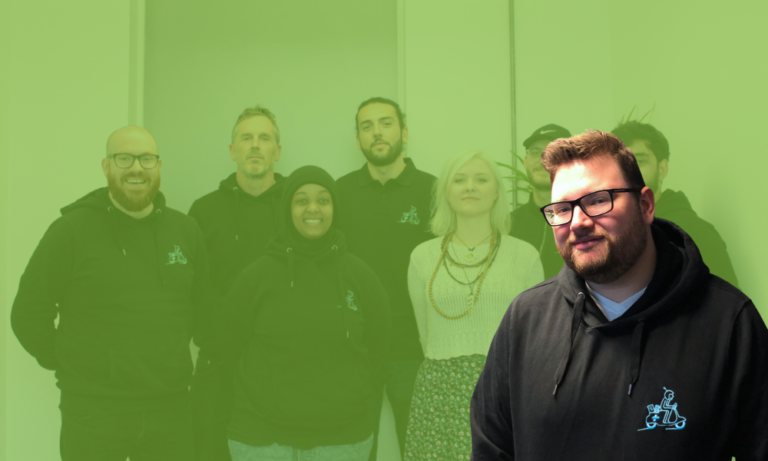
Meet Luke - the newest addition to our team. Luke has just started his role as our Projects Coordinator, bringing years of experience in...
Read more >

Once your business reaches a certain size, connecting all your software to work with other software can start to become a real headache. That's...
Read more >

Many recruitment companies struggled to survive the COVID-19 pandemic. Those that did often had a pre-existing (or quickly scrambled) digital transformation to thank. In...
Read more >

2021 was a record-breaking year for cybercrime. The frequency of cyberattacks increased by 93% that year. In response, many companies chose to accelerate their...
Read more >

The rise of Working From Home and flexible working has caused many business leaders (as many as 86% in a recent survey) to worry...
Read more >

One in three organisations were victims of a successful cyber attack during 2021, according to SoSafe’s 2022 Human Risk Review. Cyber attacks have the...
Read more >

Cryptocurrency has dominated tech news in the early 2020s. But it still seems to occupy a space that's more investment or asset class than...
Read more >
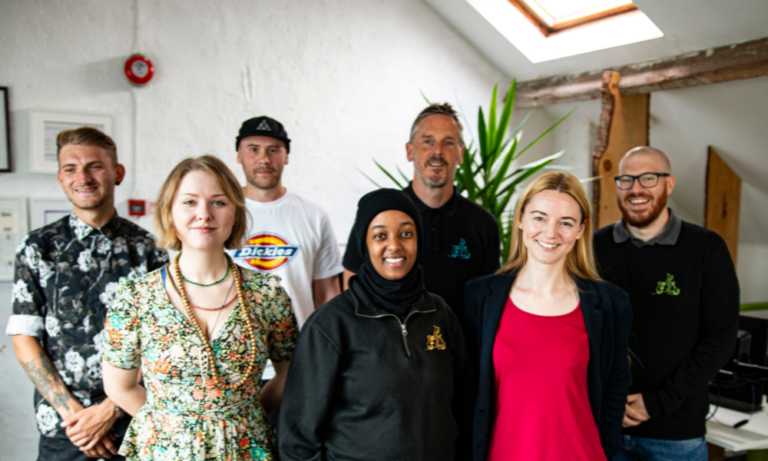
We are delighted to announce that Dial A Geek is now an accredited Living Wage Employer! It means that everyone working for us is certified to...
Read more >

Google Workspace. Microsoft 365. Skype. Zoom. Even if you don't use them, you'll have heard of all the biggest and best business collaboration tools...
Read more >

Corporate Social Responsibility should no longer be perceived as a financial drain on organisations. On the contrary, research shows that clearly communicating your CSR...
Read more >
Today’s office looks very different to how it did only a few years ago. While trends in hybrid and remote working were starting to...
Read more >

Monitoring the hours your remote working staff spend “at work” is important. But the invention of employee productivity monitoring software – a.k.a. “bossware” –...
Read more >

Digital transformation. Everyone seems to be doing it - even more so during the pandemic - and you’d be right in thinking so. Companies...
Read more >

Multi-location businesses present leaders with specific challenges. Technology can provide solutions. If you operate a business with multiple locations, here are just some of...
Read more >

Everyone seems to be talking about the business benefits of AI at the moment. For some of us though, it can all sound a...
Read more >

Businesses of all sizes need data backup. It's that simple. If you don't have a data backup and a disaster recovery strategy in place,...
Read more >

VR training is one of the new “big things on the block”. At least, as far as recruitment, onboarding, and employee training are concerned....
Read more >

If you want to put going green at the forefront of the way your business works, it's time to go serverless with SaaS (Software...
Read more >

Multi-Factor Authentication should be a basic cybersecurity standard every business has in place. If you're a business leader and you don't know what MFA...
Read more >

Some people love Working From Home. But for some, it's a struggle that can seriously impact their mental health. While many people love the...
Read more >

Control of sensitive financial information. Security of patents and Intellectual Property. Protecting your reputation. All organisations need sensible cybersecurity. But businesses in some industries...
Read more >

Technology is advancing fast. In the next decade, digitisation and automation – along with wider trends like an ageing global population – are going...
Read more >

... that you need to overcome. Being proactive vs. being reactive. That's the dividing line between business leaders who drive their tech transformation and...
Read more >

The COVID-19 pandemic pushed Working From Home (WFH) to the forefront of debates over what the workplace of the future will look like. For...
Read more >

Environmental, Social and Governance – or ESG – factors are transforming the way that investors and even some of the world's largest asset management...
Read more >

Remote onboarding is the process you use to bring new members onto your team when there will be no face-to-face interactions. Unlike one-shot orientation...
Read more >

A UK Cyber Survey found that 42% of British people actually expect to lose money to online fraud. With this shocking statistic in mind,...
Read more >

It's been a phrase on everyone's lips since the COVID-19 pandemic made us all quickly re-evaluate many of the ways we work. But even...
Read more >

Up until recently, Corporate Social Responsibility was seen by many organisations as something they had to sometimes add on top of their other activities...
Read more >

Most of the talk around blockchain technology revolves around cryptocurrency. But what I've been struck by recently are the many other applications blockchain technology...
Read more >

One of the few positives to come out of the COVID-19 pandemic is the rise in the number of companies offering their teams working...
Read more >

In the beginning, you might handle your IT in-house. But after your business reaches a certain size, there comes a time when it's no...
Read more >

Remote working numbers were on the rise before the COVID-19 pandemic. But during and since, they've skyrocketed. This has led to conversations about who...
Read more >

If you want to protect your organisation (or protect your reputation and get to work on bigger projects, e.g. with the government) , the...
Read more >

Tools like Microsoft 365 and Google Workspace are two of the best collaboration tools you can use in your office. They give your team...
Read more >

Accelerated by the COVID-19 pandemic, the rise in hybrid and remote working has led many organisations to start using employee monitoring software to check...
Read more >
All your VPN questions are about to be answered! Virtual Private Networks have been growing in importance and profile in recent years. But do...
Read more >

What will the modern workplace look like by the end of 2022 and beyond? At Dial A Geek, we think that the many changes...
Read more >

You might picture a hacker as someone sitting in a basement motivated by a purely mercenary desire to rip off businesses. They want to...
Read more >

There's one major factor responsible for cybersecurity breaches that not everyone likes to think about: your people. Human error – most commonly related to...
Read more >
If you want an easy way to know that you've protected your business from cyberattacks, the UK government-backed Cyber Essentials scheme is it. It's...
Read more >
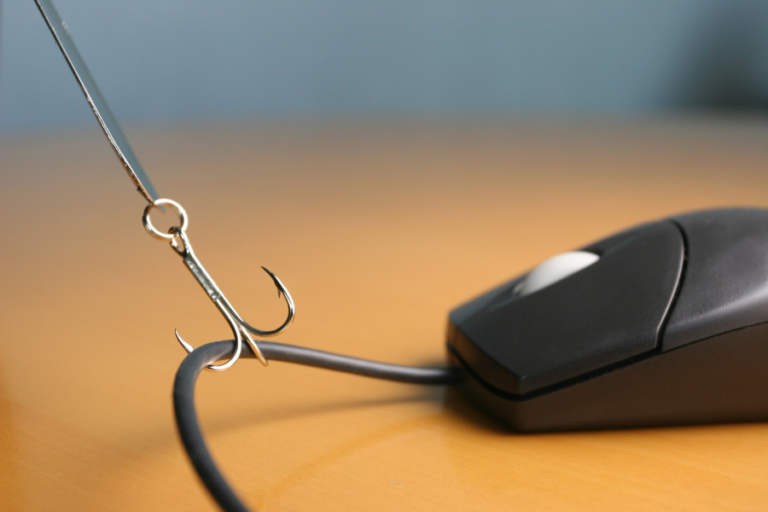
83% of successful cyber attacks in the UK in 2021 were phishing attacks. If you want to protect your business against this serious threat,...
Read more >

Without MFA (Multi-Factor Authentication) or 2FA (2-Factor Authentication), all it takes is one employee to use a terrible password. Then, suddenly, all your business's...
Read more >

Looking for the right place to focus your business tech investment in 2022? Driven by pandemic restrictions and a new wave of digital evolution,...
Read more >

Happy New Year from the Dial A Geek team! If you're anything like us, you're just squidging back into your office chair, promising yourself...
Read more >
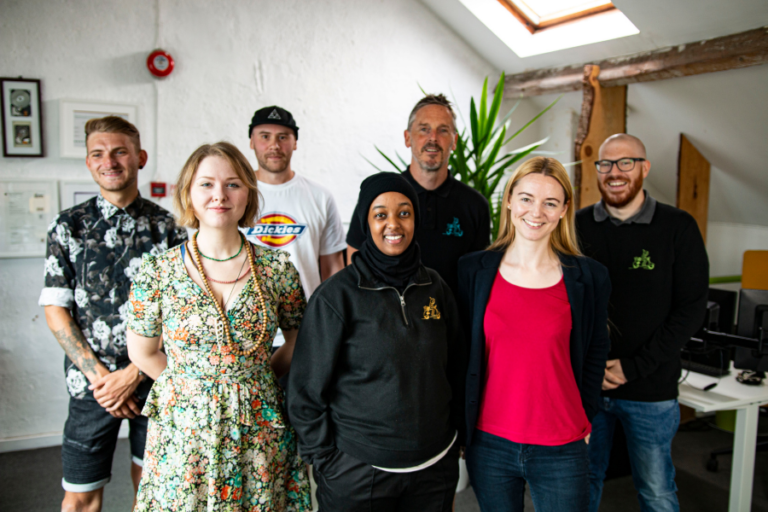
If you haven't gotten on board with our #Take15 campaign yet, now's the time to get started! For the past few months we've been...
Read more >

You might be looking forward to Christmas this year. Sadly, so are the cybercriminals who are feeling positively festive about using your disrupted working...
Read more >

We hope you enjoyed our 'Meet Your Geek' series as much as we have. Sadly, all good things come to an end and this...
Read more >
Join us for the latest in our #Take15 series talking with local Bristol business owners about how their companies and industries have evolved over...
Read more >
Microsoft 365's commercial price plans are going up. If your business uses Microsoft or Office 365, depending on the license you have, this means...
Read more >
Google Calendar is perhaps one of the less “flashy” parts of Google Workspace. On the surface, it's just a calendar. For millions of us...
Read more >
Meet Harry - the newest addition to the Dial A Geek team. Harry is one of our 2nd line IT Technicians (a.k.a. Proper Geeks)...
Read more >
Data leakage is when your sensitive business data gets exposed either physically or electronically. This isn't usually a planned cyber attack. It's often an...
Read more >

Smartphones are so ubiquitous these days it's easy to forget that we're all carrying in our pockets something that would once have been regarded...
Read more >

Most businesses faced some serious disruption in 2020 and 2021. If you were one of those who suddenly had to institute distance working policies...
Read more >

Cutting carbon emissions. Net Zero. The UK government has started to drop heavy hints that, for businesses, the time to start acting to stay...
Read more >

Meet Alix - our Finance Manager. Alix is responsible for all things money and is probably much geekier than you'd think (which is, obviously,...
Read more >

WooOOooh... It's (almost) Halloween. Time to don your spookiest costume and get out there to scare the neighbours. Because it's that very special time...
Read more >

HIPAA is the Health Insurance Portability and Accountability Act. It's quite a mouthful. If you're a life sciences company wanting to trade in the...
Read more >

Meet Gildas (although you probably have, multiple times): our Chief Geek. The O. G. Geek. To most of us: the boss. Gildas is the...
Read more >

Finding the right time for that meeting is one of the scourges of the modern workplace. You might be using Microsoft Teams, Zoom, or...
Read more >

We had a good look at the last 15 years; but what about the next 15 years? What do you think the average workplace...
Read more >

A few years ago, digital transformation in the financial industry was all about getting on the cloud. Now that cloud-based services are the norm,...
Read more >

Meet Edoardo: our 3rd Line Support Geek. None of us remember Edoardo being hired which means that he is the second most experienced in...
Read more >
Data breaches can be expensive. In fact, the average cost of a breach in the UK is £2.37 million. That's a staggering amount. But...
Read more >

Microsoft Teams is the way that over 145 million people communicate in their workplace. It's easy to see why: Fast. Smart. Efficient. It lets...
Read more >
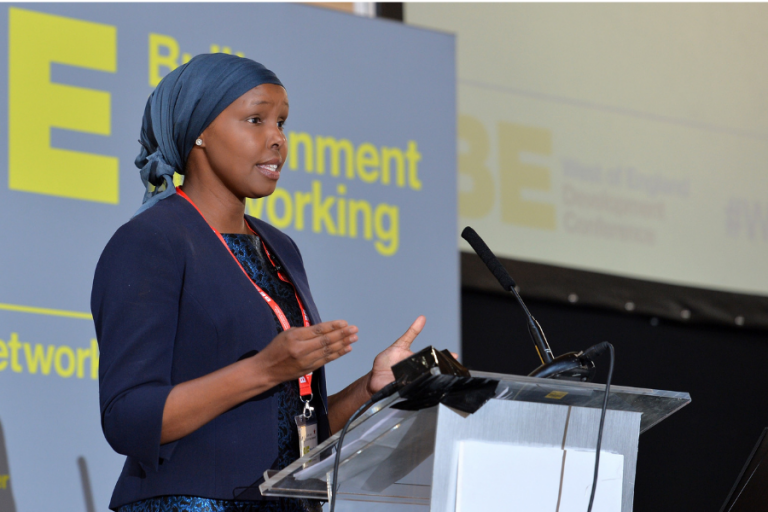
Welcome to the latest edition of our #Take15 campaign, in which we celebrate the local people and businesses that have inspired us over the...
Read more >

As you'll know all too well, law firms have access to all kinds of sensitive data. Financial records. Intellectual Property. Personally Identifiable Information. This...
Read more >

The ESFA just announced that any organisation that receives funding from them is going to need to meet Cyber Essentials requirements if they want...
Read more >

It's not a type of power that comes up much in conversation. But if you've been to Glastonbury Festival any time in the past...
Read more >

TL;DR Cyber security in 2025 is essential for SMEs. This practical cyber security checklist for SMEs outlines what your business needs to stay protected,...
Read more >

Meet Yusra: our 1st/2nd Line Business Support Technician. Yusra is our award-winning apprentice - we're very proud of her. She mainly works on Helpdesk,...
Read more >

A story emerged over the weekend of how a Russian hacker group going by the name of REvil conducted a massive cyber attack on...
Read more >

This continues our #Take15 series exploring local business owners' experience and development over the past 15 years. Here is Russell Smith of Bristol's favourite...
Read more >

Your brand's reputation can make or break your business. It's sort of like your credit score. A positive reputation drives sales growth and success....
Read more >

Meet Nina: our Marketing Geek. Nina develops marketing strategies, produces and delivers content, analyses marketing success, manages marketing budget... and does all the things...
Read more >

Even if you don't watch American Football, you might tune in for the Super Bowl. And even if the Super Bowl doesn't do it...
Read more >
2020 transformed the way businesses around the world operated. With COVID-19 lockdowns and the sudden remote working boom, big changes were happening fast all...
Read more >

Meet Glen: our Operations Manager and Business Support Geek. Glen manages all the Geeks and the Helpdesk, oversees our technical solutions, develops processes, oversees...
Read more >
Starting our #Take15 series looking at how local businesses have developed over the past 15 years is our own Gildas Jones, tackling the evolution...
Read more >

If you have a growing business, the biggest cyber security threat to you might just be your own team. That's not to say that...
Read more >

Join us in our #Take15 campaign and celebrate the local people and businesses who have inspired us over the past 15 years! First up,...
Read more >

If you're an SME or start-up that wants to grow, your tech can be your wingman or a source of woe. Particularly if your...
Read more >
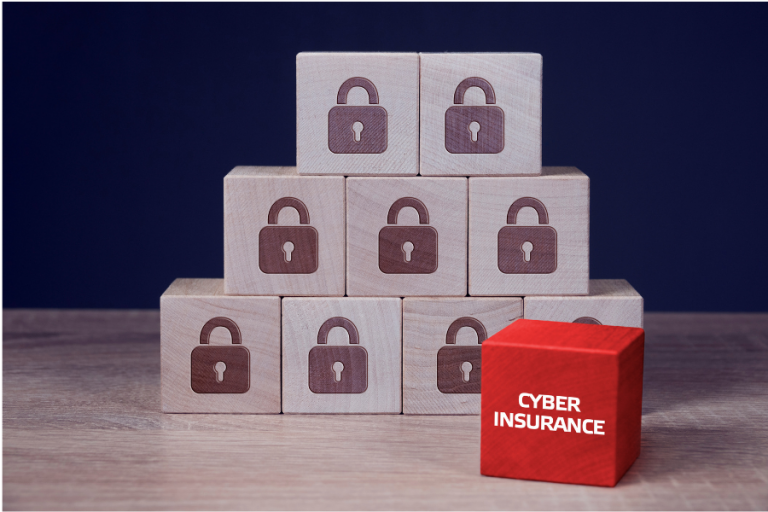
Making sure you have comprehensive managed cyber security protection in place is vital. But what happens if something still goes wrong despite all of...
Read more >

Dial A Geek's #Take15 campaign is all about celebrating the people who have helped and inspired us and the events of the past 15...
Read more >

Dial A Geek turns 15 years old this year! To celebrate, we're launching our #Take15 campaign. It's a chance to look back at the...
Read more >
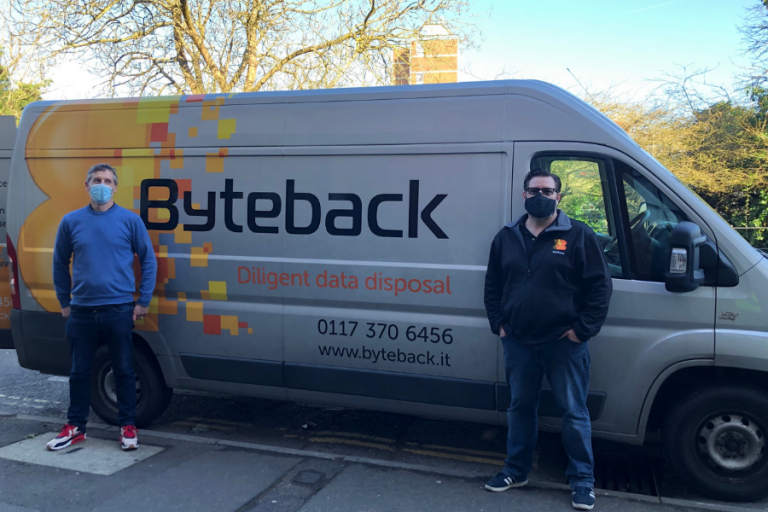
IT can sometimes have negative connotations when it comes to the environment. But there are ways to make your use of IT more sustainable....
Read more >

What is your business's current cyber security set-up like? If you are like 40% of UK businesses, the answer could be “non-existent”. Given it's...
Read more >

Modern businesses that want to get the most out of their team's efficiency and their profit margin migrate to the cloud. More than ever...
Read more >

Hopefully, we're all progressing back towards a time when we can get back to the office. It might not happen all at once. But...
Read more >

When things hit the fan, having a proper data backup and disaster recovery plan in place will save you a whole lot of time...
Read more >

International Women's Day falls today, on the 8th of March. To celebrate, let's take a look at famous women in tech. Some of whom...
Read more >

You may remember our video in which we went through the changes Microsoft brought to Teams in the last year - they really made...
Read more >

Going from nought-to-sixty in terms of a fully functioning business IT system can feel like an insurmountable task. But, as with all big tasks,...
Read more >

Setting up an out of office message in Outlook is quick and easy. But failing to set an OoO response can be a big...
Read more >
No one wants their own business to go down to a cyber attack. No one wants their client businesses to either. In fact, for...
Read more >

The apprentices cover a range of roles within our company – from Jack the dispatcher, through first line IT support, to 2nd line in training. They...
Read more >

Working from home is the 2020 revolution that just won't quit. For many business owners, WFH has given their team a way to continue...
Read more >

COVID-19 has changed the working landscape. And it may have changed it for good. How has your business's way of working been affected? Do...
Read more >

It usually takes something very big – think missing money from your account – or something very weird before many businesses notice they've been...
Read more >

When it comes to your business IT or cybersecurity, there always seems to be some time in the future do it in. Until suddenly,...
Read more >

Or rather, are your employees' passwords endangering your company? It might seem funny that people are still using passwords like “qwerty” and “123456”. But...
Read more >

'Tis the season to be attempting some socially-distanced shopping! What could be more fun than crowded stores and people awkwardly trying to keep a...
Read more >
Since we hired our first apprentice, Joe, back in 2016, Dial A Geek has been a real fan of having minions in the office....
Read more >

The prospect of the second UK national coronavirus lockdown (also known as Lockdown 2 Electric Avenue, Lockdown 2 Electric Boogaloo and Lockdown 2: Lock Harder) has already prompted...
Read more >

Microsoft Lists might have appeared in your Microsoft 365 package as if by magic in the later part of 2020. Good news though! You're...
Read more >

If your business doesn't have a tech focus, it's easy enough to fall into the trap of doing your cybersecurity on the cheap. As...
Read more >

Is your company already setup on Teams and SharePoint to make remote working easy? Microsoft 365 is doing a lot of work keeping teams...
Read more >

The COVID-19 pandemic has led to huge numbers of businesses suddenly making the switch to working from home or having a hybrid working set-up....
Read more >

For many business owners, data breaches sound like things that happen to other people. After all, who would want to steal data from a...
Read more >

Is your cybersecurity up to scratch? If you ask many business owners, most will tell you “yes, I've got antivirus software” and believe this...
Read more >

System failures are inevitable. Third-party service providers get hacked. Files can get corrupted. Hard drives and servers fail. A disaster recovery plan is crucial...
Read more >

Bring Your Own Device (BYOD) is the in-the-know name for a situation where your team uses their own laptops and other devices for company...
Read more >

The coronavirus pandemic has forced a whole lot of businesses to suddenly rethink the way they operate. For some, this meant all hands to...
Read more >

With more than half a million organisations and 13 million people using it every day, Microsoft Teams is already the biggest collaboration tool on...
Read more >

About 2 billion people around the world use WhatsApp as their go-to messaging app. Roughly 5 million people specifically use WhatsApp Business, the business...
Read more >

With the arrival of the coronavirus pandemic and the huge disruption it has caused around the world, many more businesses are finding that they...
Read more >

As if life wasn't challenging enough for charities and not-for-profits already, COVID-19 has added an extra level of problems. Fundraising is hard work. But...
Read more >

The “fact” that it is impossible to get a virus on a Mac has been something of an urban legend for many years. But...
Read more >
If you ask most business owners why they haven't set up proper cyber security for their business, they'll have a ready-made reason in mind: ...
Read more >
Microsoft SharePoint is one of the most effective business collaboration tools. Whether your team is working from home, from the office or part and...
Read more >
Working remotely as a team is really important right now, with so many of us sitting in different places instead of the office. SharePoint is a...
Read more >

Switching to cloud computing is the goal of large numbers of businesses at the moment. It's easy to see why. Cloud adoption: Saves you money Increases...
Read more >

Hackers are always on the lookout for your data. And they love it when you make it easy for them. Never assume your passwords...
Read more >

Google's G Suite is part of the way thousands of businesses operate. Millions of people around the world collaborate through Google Docs or communicate...
Read more >

The benefits of moving to Office365 (Microsoft365) are there for every business leader to see: There's the incredibly tough security. The easy access from any device....
Read more >

An IT health check helps you protect your business from cyber security threats inside and out. It finds your vulnerabilities. It confirms you're using...
Read more >

Your Managed Service Provider can be a source of security, convenience and value for your business. Not to mention on-demand support when it comes...
Read more >

In the age of perpetual connectivity, slow Internet is unacceptable. For businesses, sluggish broadband is a sinkhole for money. Your average employee loses a...
Read more >

Employees will join and leave your company on a regular basis. When they're no longer part of your team though, it's important to remove...
Read more >
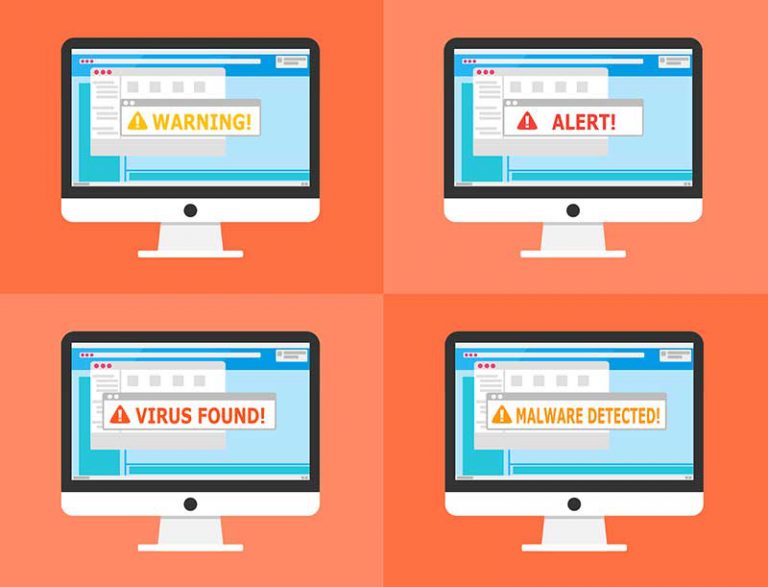
Cyberattacks, unless you’ve had it happen personally to you, can seem like a far-away threat. More than half of SMBs don’t think they’re at...
Read more >

Our Geek apprentices are our first line of IT support. They spend most of their time with us, part-working and part-studying their coursework in...
Read more >

The covid-19 pandemic has taught us many things. Not least, how important it is to be set up to keep our businesses operating even...
Read more >

MFA is far superior to password-only protection when it comes to account security. The reason is pretty simple: If you are trying to gain...
Read more >

Technology is an integral part of any business, regardless of its size. However, managing technology can be increasingly tough. As a company owner or...
Read more >

The operating system you choose affects how you operate your business. From how fast your employees can accomplish tasks to how much of your...
Read more >
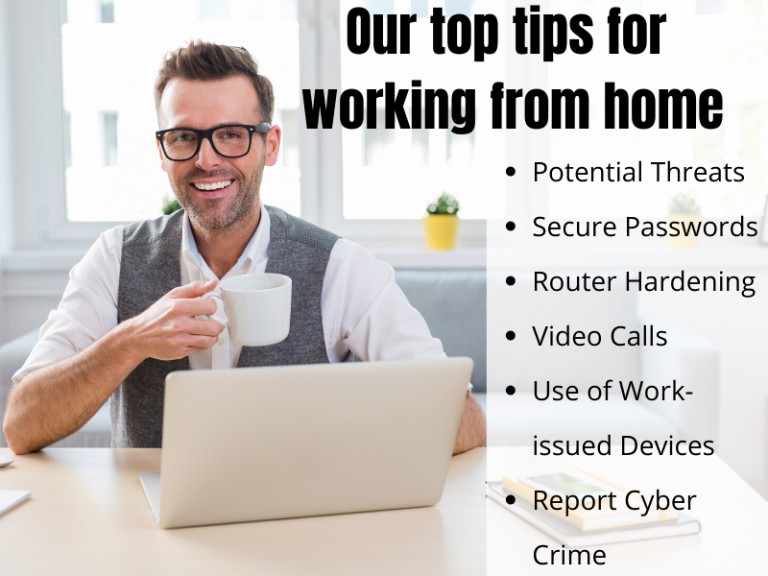
The recent COVID-19 situation has suddenly presented IT personnel and users all over the world with a set of cyber security challenges that, whilst...
Read more >

Have you wondered why all the geeks use two or more monitors at once? According to The New York Times’s report dual monitors have...
Read more >

In Feb 2020, the National Fraud Intelligence Bureau identified 21 reports of fraud where Coronavirus was mentioned, with victim losses of over £800k. That...
Read more >

No matter how smart or innovative your small business is, you are bound to face tech problems from time to time. Many businesses struggle...
Read more >

Email is the de facto medium for communication in the digital age. It’s a very noisy data highway with over 124 billion business emails...
Read more >

We are making some changes due to Covid-19. As of this week, we are all working from home. Remote working isn’t new to us,...
Read more >

As the coronavirus spreads across the world, some companies are asking their workers to work remotely as a measure against the spreading of the...
Read more >

Bristol has long been leading the way as one of the UK’s top smart cities by using data and technology to improve the quality...
Read more >

Bristol is one of the UK’s major digital hubs, and this is mainly due to the innovative tech companies based in the city. Bristol...
Read more >

Over the last decade or so, Bristol has become one of the most important robotics hubs in Europe. It is not only the UK’s...
Read more >
Cybercrime is an ever-present danger today. UK businesses, in particular, have much to be concerned about. The National Cyber Security Centre reports that 2017...
Read more >

Despite the leaks, the breaches, and the endless privacy risks, many people were still using simple, easy-to-guess passwords in 2019. In fact, the list...
Read more >

On 25 September 2019, the European Commission awarded Bristol €100,000 for its One City approach to improving the fairness, health, and sustainability of the...
Read more >

A recent report from DJS Research found that more than 80% of UK councils had little to no involvement in smart cities, with a...
Read more >
In 2018, the General Data Protection Regulation (GDPR) came into effect to protect the private and sensitive information of EU citizens. Compliance to the...
Read more >

If you’re a freelance coder or developer, or even if you run a startup AI, augmented reality or even robotics, you have no shortage...
Read more >

Bristol is one of the most important tech hubs in the country, so it’s no surprise that there are a huge variety of technology-related...
Read more >
Cybercrime is at an all time high, and criminals are only developing more devious and ingenious ways to steal your data. Cyber criminals have...
Read more >
Have you ever heard ‘cyber-security’ and thought ‘my business is too small to worry about it’? According to the FSB, small businesses are collectively...
Read more >
G Suite and Office 365 are today’s biggest and most widely used productivity suites. Between the two you get applications for everything from creating...
Read more >

A play on Silicon Valley and Avon Gorge, Silicon Gorge is a region comprising Bristol, Gloucester and Swindon where there is a particularly large...
Read more >

What is Microsoft Teams? Microsoft Teams is a communications and collaboration platform that combines instant chat and video meetings with quick access to...
Read more >

Bristol provides plenty of opportunities for entrepreneurs not just to start but grow companies that can compete with the best in the UK and...
Read more >
As technology progresses, the potential for crime escalates along with it. Cybersecurity threats have made big headlines in 2018, pointing to an evolving underground...
Read more >
Most of us use email all the time, but while it allows us to communicate with our colleagues, clients and customers, it can also...
Read more >
If your business is expanding, it can easily start to outgrow its IT infrastructure. These days, IT touches on almost every area of the...
Read more >
It’s rare to find a modern business that doesn’t rely to some extent on information technology in this day and age. Yet IT can...
Read more >
Are you sitting in your car before going into the office? Are you looking through your calendar and trying to carve out some time...
Read more >

As a very techy lot our IT support geeks often come across interesting apps and websites that make our lives easier or just more...
Read more >
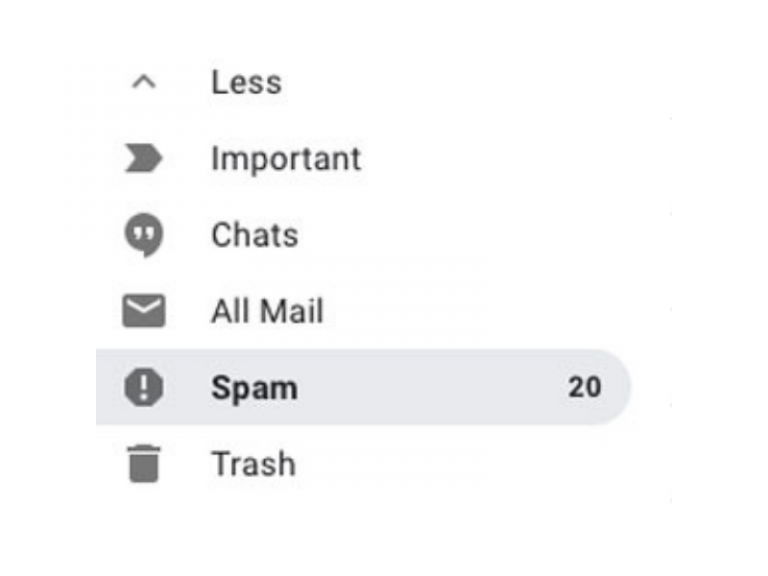
“Oh, I’m sorry I didn’t receive the email” is surely the 21st century equivalent of, “the cheque’s in the post” when it comes to...
Read more >

Christmas is on its way. If trudging around shops in freezing weather does not appeal to you, you might start looking into doing your...
Read more >
As a very techy lot, our IT support team often come across interesting apps and websites that make our lives easier or just more...
Read more >

What Storage should you choose at the end of 2018? As technology progress, manufactures manage to squeeze more storage in less and less space....
Read more >
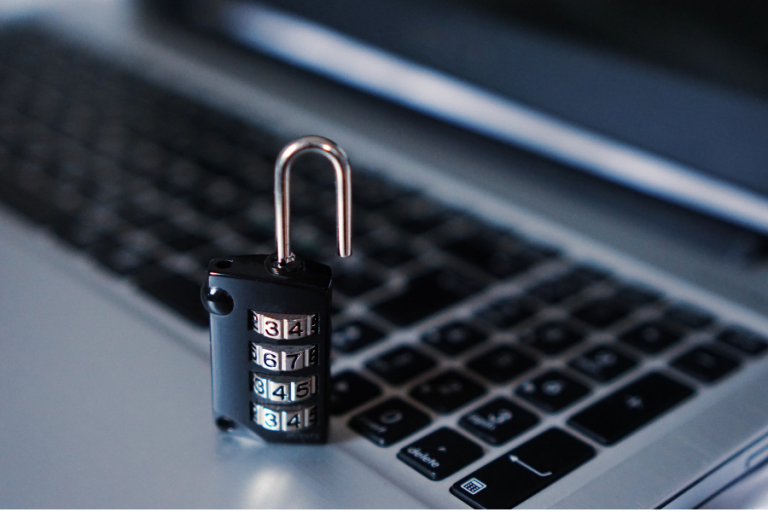
Security in IT has skyrocketed with the GDPR regulations. Even the smallest businesses now are aware that you need to protect your cyber properties...
Read more >

We’re all aware by now of GDPR and the huge fines companies risk if they don’t take steps to comply with it. There are...
Read more >

At Dial a Geek, we work with an IT service desk ticketing system: all our work is channelled through Freshdesk, where we can manage...
Read more >

Dial a Geek were proud to sponsor the TEDxBristol event, which took place at Colston Hall on the 2nd and 3rd of November 2017....
Read more >
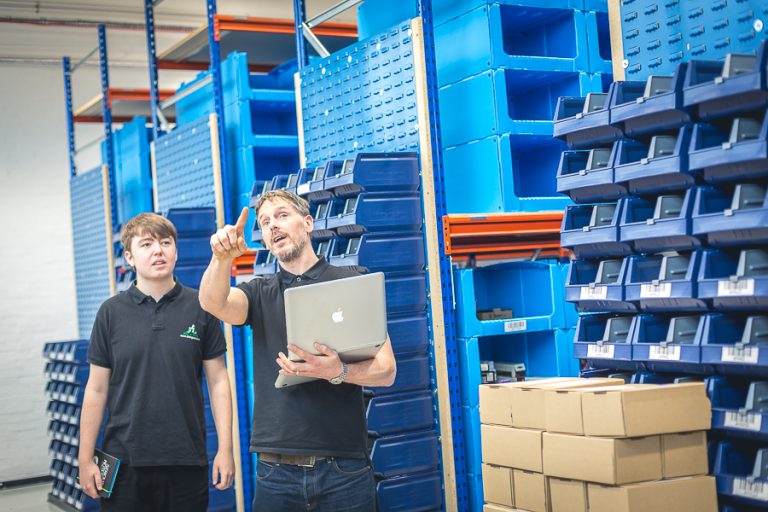
The Dial A Geek story Dial A Geek began in the kitchen of Gildas Jones, working from a laptop perched atop an ironing board....
Read more >

October is bursting at the seams when it comes digital-focused events for small business. Here’s our round-up of the best free events this month....
Read more >

Dear students, Welcome (or welcome back) to University. You probably haven't heard of us (yet) but a large number of you will contact us...
Read more >

There are a lot of misconceptions when it comes to IT support. Dial A Geek, a Bristol-based IT company, have risen to the challenge...
Read more >

Office tech driving you mad? You're not alone. According to a survey of 1500 UK office workers, technology is the most irritating aspect of...
Read more >
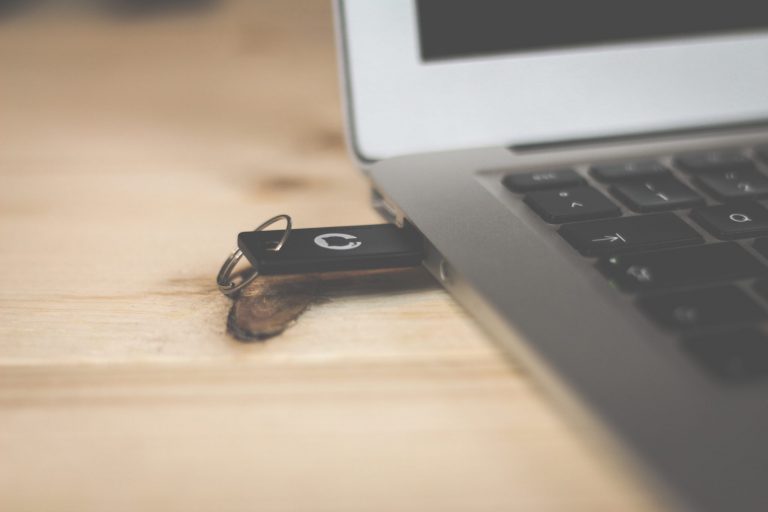
Security experts say it's just a matter of time before another mass ransomware attack hits the UK. Is your business ready? Ransomware...
Read more >

Is your business safe from phishers? You may think your business is small fry for hackers, but the statistics suggest otherwise. According to research...
Read more >

We work with computers, a lot. It's kind of our thing. So you might be surprised to learn we have a pretty strict no...
Read more >

Email signatures are an essential part of your company’s branding: they can include a logo, important company info, and other details you’d like every...
Read more >

Thank you to Matt Powell from Broadband Genie for submitting this article. The Online Security Basics You Need To Know The internet is vital for modern...
Read more >

'Bogus Boss' email scams on the rise in Bristol. True to the wider trend across the UK, we have noticed an increase in the...
Read more >

If your password is on this list, you better change it, quick. Millions of passwords are stolen every year, and 2015 was no exception...
Read more >

How to get the most out of your IT support plan When you’re running a business, having an unexpected IT meltdown can set you...
Read more >

Can you improve your business' productivity in one afternoon? Attendees of our recent event were given the tools to do just that, and for...
Read more >

Have you seen the new banner on our home page and wondering what it's about? The exciting news is that Dial a Geek have...
Read more >
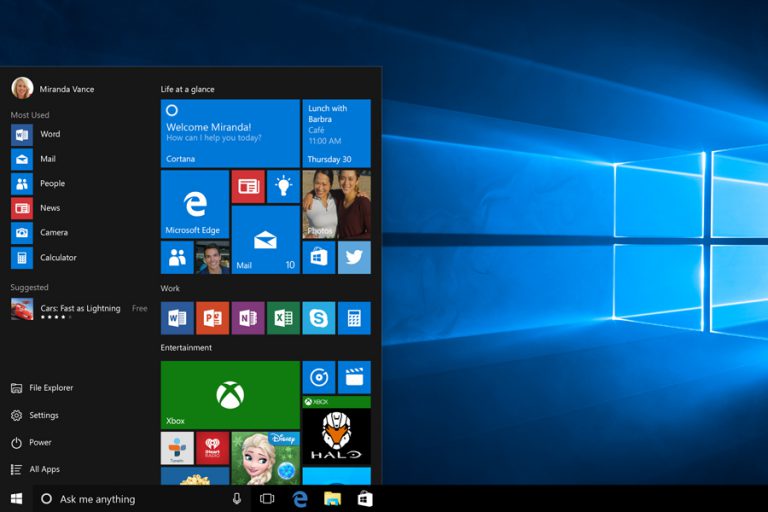
Many of our clients have been asking us, 'should I upgrade to Windows 10?' And our response is usually, 'wait a little longer.' Unless...
Read more >

Unroll.me is a free service that scans your inbox and presents you with a list of everything you’ve subscribed to. You then have the...
Read more >

Ransomware is a particularly nasty kind of malware virus that encrypts your files and holds them hostage for money. It's something that our IT...
Read more >

Here at Dial A Geek, we see hundreds of machines a year that have been infected with viruses, so you can trust us when we say...
Read more >

Will your business be ready for the Google update on April 21st? On April 21st Google will change their search algorithms to reflect...
Read more >

Gmail doesn't just send and receive email, If you know where to find them there are dozens of tools to boost productivity and improve...
Read more >
Hello, I'm Chief-Geek, Gildas Jones. Recently a client brought in a Power Macintosh 7200/90 from 1995 for data recovery, and I wanted to share...
Read more >

Hi, Chief Geek Gildas Jones here. One of the most issues that IT helpdesk people deal with is passwords. So I want to talk...
Read more >

Here are the top ten questions our IT helpdesk get asked about Windows 10. 1. How much does it cost? Windows 10 will be...
Read more >

Boomerang is a Gmail extension that allow you to schedule, track and resend emails. Here at Dial a Geek we like to keep a...
Read more >

Like a lot of Bristol businesses we have signed up to the Bristol Pound and excitedly started receiving payments from our customers. As a...
Read more >
We had this today, a new client called us... He was called up by someone claiming to be a Microsoft representative. He then said...
Read more >

Alison Armitage is one of our clients and I thought it would be good for her to share some tips on dealing with the...
Read more >